Windows desktop image utility
Convert WebP to JPG in Bulk on Windows
Convert individual WebP images or whole folders to JPG on your Windows PC. Process them locally and keep your original files untouched.
Batch and folder processing · Local on Windows · Originals stay untouched
 Custom mode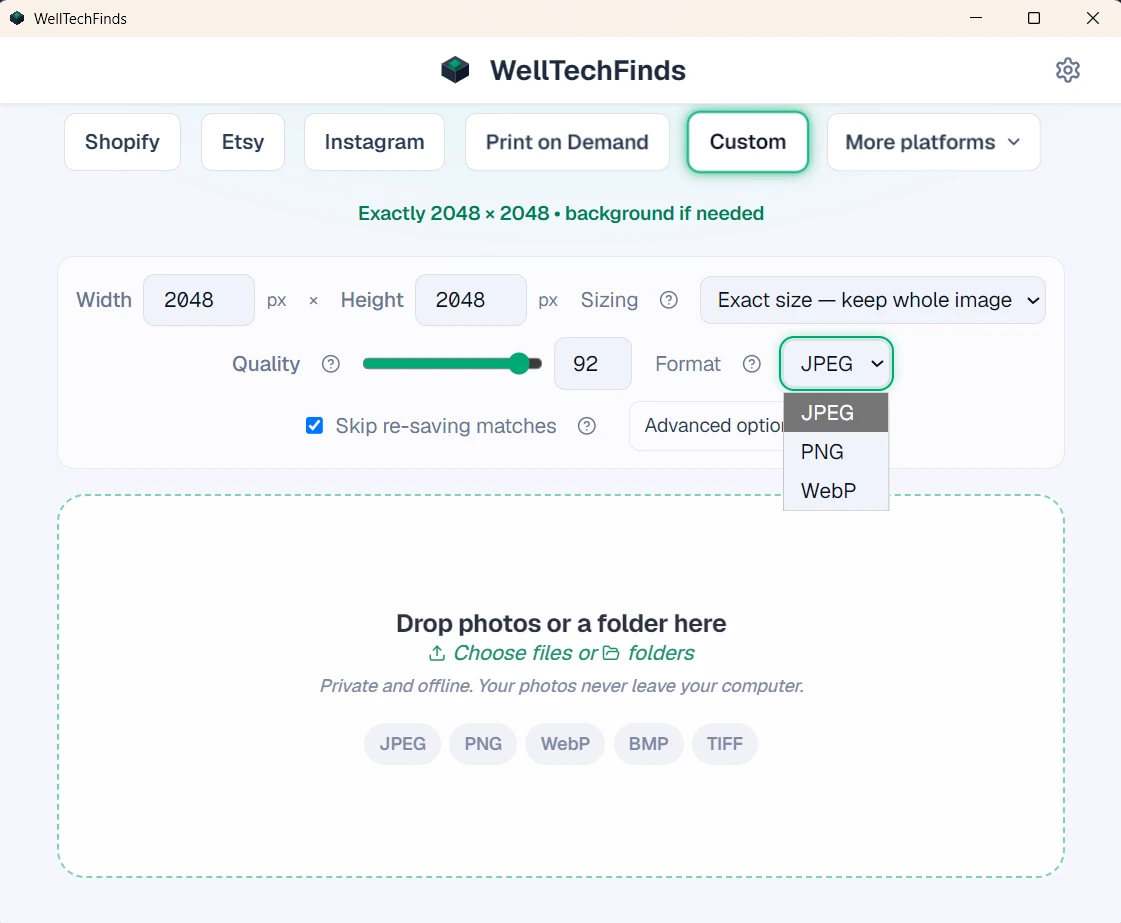
How to convert WebP to JPG on Windows
Three steps for a WebP to JPG batch
Add your files, choose JPEG, and process the copies. You do not need to upload them to a website.
- 1
Add your WebP files or a folder
Drop individual images or a whole folder into WellTechFinds.
- 2
Choose JPEG as the output format
JPG and JPEG are the same format. The app labels it JPEG.
- 3
Process the batch
Save the converted copies in the output folder you choose.
Why use a Windows desktop converter?
Keep a large conversion job on your PC
For a few files, an online converter may be enough. For hundreds of WebP images, a local batch workflow keeps the job together.
- Convert many files in one batchProcess multiple images or a whole folder together.
- No uploading hundreds of imagesYour files stay on the Windows PC where you are working.
- Keep originals untouchedWellTechFinds creates converted copies instead of overwriting your WebP files.
- Choose where copies are savedUse an output folder that fits your existing file workflow.
Optional controls
Adjust the copies while you convert
- Adjust JPEG quality for the balance of file size and visible detail.
- Resize images in the same batch when required.
- Use Fit, Crop or Pad, including Custom mode in the current beta.
- Choose the output folder for the new JPEG copies.
Questions about WebP to JPG conversion
WebP to JPG on Windows FAQs
Can I convert multiple WebP files to JPG at once?
Yes. Add multiple WebP files and process them as one batch.
Can I convert a whole folder of WebP files?
Yes. You can add a whole folder, then save the converted copies to an output folder you choose.
Does WellTechFinds upload my images?
No. Processing happens locally on your Windows PC. Your images do not need to be uploaded to an online converter.
Are my original WebP files changed?
No. WellTechFinds creates copies and leaves the original WebP files untouched.
Does this work on Windows 11?
Yes. WellTechFinds works on Windows 10 and later, including Windows 11.
Is JPG the same as JPEG?
Yes. JPG and JPEG refer to the same image format. The app labels the output format JPEG.
Can I resize the images while converting them?
Yes. You can resize during the same batch using Fit, Crop or Pad. The current beta also includes Custom mode.
Convert your WebP files on Windows
Try the batch workflow with your own files
Start the free 10-day beta and convert WebP files locally on your Windows PC.
Try the free 10-day betaWant the broader image workflow? See the main WellTechFinds page.